Your digital portfolio is where you’ll present all of your coursework for the academic year. This includes large-scale work, sketchbook work, 3D projects, and any other artwork you create. Be sure to photograph and upload everything to your blog.
Your blog will be regularly assessed by your project lecturers, SLA, and WEX employer link. Therefore, it’s important to maintain and update it weekly. Your blog should be free of spelling or grammatical errors and be presented in a style that allows your visual and written work to be properly assessed.
At the end of your Final Major Project (FMP), your blog will be sent to the UAL Awarding Body for final assessment. UAL will use your blog to determine your final grade for the year. If they cannot access or assess your blog, it could negatively impact your grade, so do not delete any work or take your blog offline.
Please note: Your blog must not contain sensitive, inappropriate, or explicit visual material or language. If you feel that your content might be considered sensitive (e.g., life drawing materials), speak to your course leader to ensure you are protecting yourself and your site. AI is not allowed to be used to support any written work, practical development and personal outcomes.
Step-by-Step Guide to Creating Your Portfolio Blogs
1. Creating a New WordPress Account (For New Students Only)
Start by setting up your WordPress account. Visit WordPress.com and click on “Get Started.” Use your college email (your ID number followed by @student.west-thames.ac.uk) to register. Make sure to activate your account by checking your email for a confirmation link.
2. Selecting Domain Names
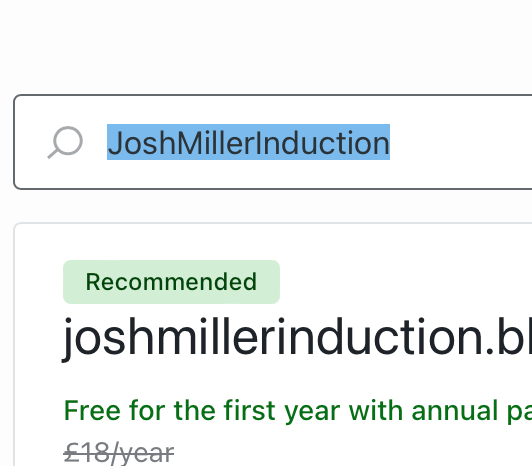
After creating your account, you’ll need to choose a domain name for your first blog. Your blog domain should include your first name, surname, and the project name. Remember, you’ll be creating blogs for four projects: Induction, Project 1, Project 2, and FMP. If your preferred domain is unavailable (WordPress will add a number following your name if it is not available), try adding a word like “art.” Start by naming your induction project, using your name followed by “induction.”
3. Choosing a Domain and Plan
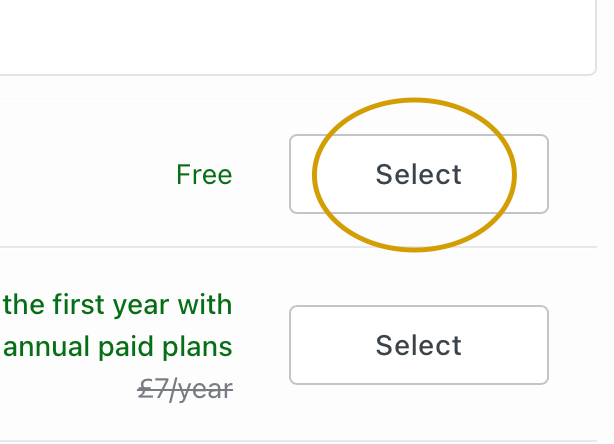
Select the free domain option (the third one, labeled as “Free”). Then, click “Continue” on the right side. When asked to choose a plan, select “Start with Free” (the first option). We want to avoid any costs.

4. Launching Your Blog
You can skip setting goals by clicking “Skip to Dashboard” at the top right. On your dashboard, you can control and edit your blogs. First, let’s make your blog visible to others. Find the checklist that says “Next steps for your site” and click on the last option, “Launch Your Site.” Your blog is now online! You can close the pop-up message by clicking the “X.”
5. Selecting a Theme
To change the look of your blog, go to “Dashboard,” then “Appearance,”. Search for the “Rebalance” theme, click on the “Rebalance” theme and and activate it. Then click on “Customise design”.
6. Personalising Your Blog
6.1 Site Identity
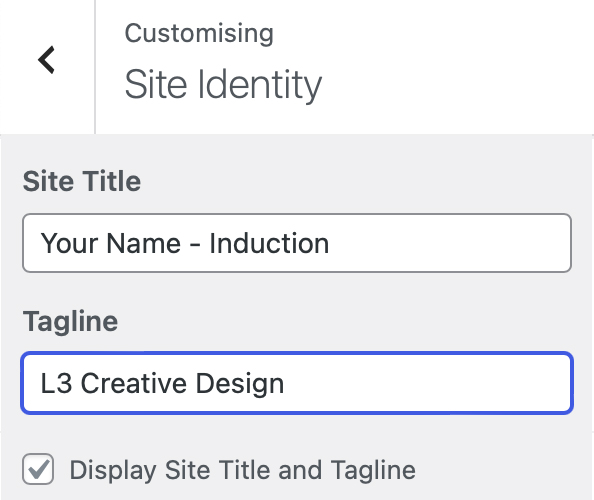
Begin by changing your “Site Identity.” Set your name and the project name as the site title and use your course name and level as the tagline (e.g., L2 Creative Design”). Save your changes as you go to avoid losing any work. Use the Arrow to return to Customising.
6.2 Creating a Menu and Pages
Next, let’s create a navigation menu. Click on “Menus” and name your menu (e.g., “Main Menu”). Choose the “Header Menu” option and click “Next.” Add items to your menu by clicking “Add Items.” Create a “Home” page and one page for each of your projects (e.g., “Digital,” “2D,” “3D”). After adding all the pages, save your changes.
6.3 Setting a Static Homepage
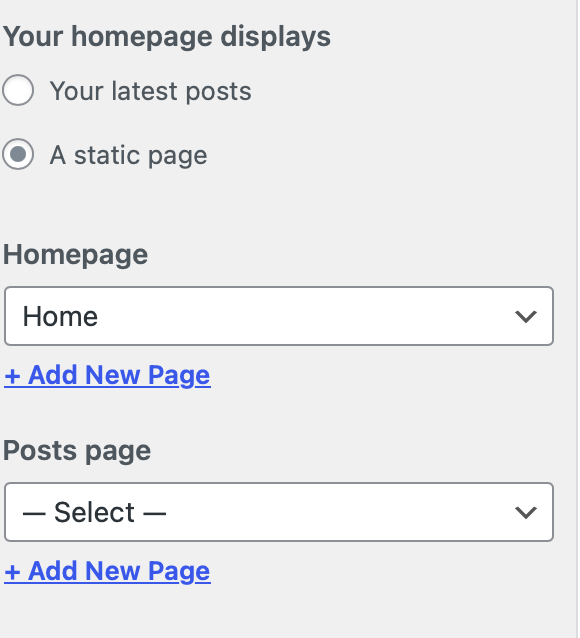
Still in the “Customise” section, go to “Homepage Settings.” Change the setting from “Your latest posts” to “A static page.” Select “Home” as your homepage and leave the “Posts page” option unselected, as we won’t be using posts. Save changes and return to customise.
6.4 Customising the Design
On “Colour and Backgrounds” You can personalise your blog by exploring different colours and fonts. However, follow these guidelines:
- Don’t use patterns, background images, or animations.
- Choose harmonious colours with high contrast between text and background (e.g., black text on a white background).
- Stick to standard Serif or Sans Serif fonts.
Your design must be approved by your teacher, so make sure it adheres to these guidelines.
Once you’re done, save your changes and return to the dashboard by clicking the “X” at the top left corner and then on “Back to dashboard“
7. Adding More Blogs for Your Projects
Once you’ve set up your first blog, you’ll need to create additional blogs for each of your projects: Project 1, Project 2, and FMP.
- Go to Your Dashboard
From your current dashboard, click on the WordPress icon located in the top left corner. This will take you to a page where you can view all of your sites. - Add a New Site
On this page, you’ll see a list of your existing sites. Click on “Add New Site.” This will start the process of creating another blog. - Repeat the Setup Process
Follow the same steps you used to create your first blog:- Choose a domain name that includes your name and the specific project (e.g., “JohnDoeProject1”).
- Follow all the steps before changing the name of the blog according to the project you are creating.
- Launch your site and customise it as needed.
Repeat this process for each of the remaining projects: Project 1, Project 2, and FMP.
8. Setting Up Your Main Blog
In addition to the project blogs, you’ll need to create a main blog that serves as the central hub for all your work. This main blog will feature your name, course level, and links to your four project blogs.
1. Create Your Main Blog
- Go to Your Dashboard
Start by returning to the WordPress dashboard. Click on the WordPress icon in the top left corner to view your sites. - Add a New Site
Click on “Add New Site” to begin setting up your main blog. - Choose a Domain Name
For this blog, the domain should be your name (e.g., “JohnDoe”). If that’s not available, add the word “art” to the domain (e.g., “JohnDoeArt”). - Choose a Plan
Select the free domain option, then click “Continue.” When asked to choose a plan, select “Start with Free” (the first option). - Launch Your Site
Skip any goal-setting by clicking “Skip to Dashboard” at the top right. Launch your site by following the same steps: go to the checklist, click “Launch Your Site,” and close the pop-up.
2. Personalise Your Main Blog
- Select a Theme
Go to “Dashboard,” then “Appearance,” and choose “Themes.” Search for the “Rebalance” theme, and activate it. - Set Your Site Identity
Navigate to “Customise this design” and go to “Site Identity.”- Site Title: Enter your full name as the site title (e.g., “John Doe”).
- Tagline: Enter your course level and name as the tagline (e.g., “Level 1 Creative Design”).
Save your changes.
- Create a Menu and Home Page
Now, create a simple menu with just one page: “Home.”- Go to “Menus,” name your menu (e.g., “Main Menu”), and select “Header Menu.”
- Click on “Add Items,” then create a page called “Home.”
- Save your changes.
- Set a Static Homepage
In the “Customise” menu, click on “Homepage Settings.” Change the selection from “Your latest posts” to “A static page.” Select the “Home” page as the homepage and leave the “Posts page” option unselected. - Final Design Customisation
You can customise your blog’s appearance by adjusting colours and fonts. Keep it simple and professional:
- Colours: Choose high-contrast combinations, like black text on a white background.
- Fonts: Stick to standard Serif or Sans Serif fonts.
Return to Dashboard.
Adding the buttons with the links
- Click on Pages and Find Home
- On the “Home” page, add a block by clicking the “+” icon and selecting “Buttons.”
- Create four buttons, one for each of your project blogs.
- Label each button with the project name (e.g., “Induction,” “Project 1,” “Project 2,” and “FMP”).
- Link each button to the corresponding project blog by pasting the URL into the button’s link field.
- Save your changes.
The best way to find the links to your sites is going to the Sites page and right click on the link an “Copy link address”
 Art & Design @ West Thames College