Task 1 Mandala Design
Research Instructions:
Before creating your mandalas, gather inspiration from real-life examples. Follow these steps:
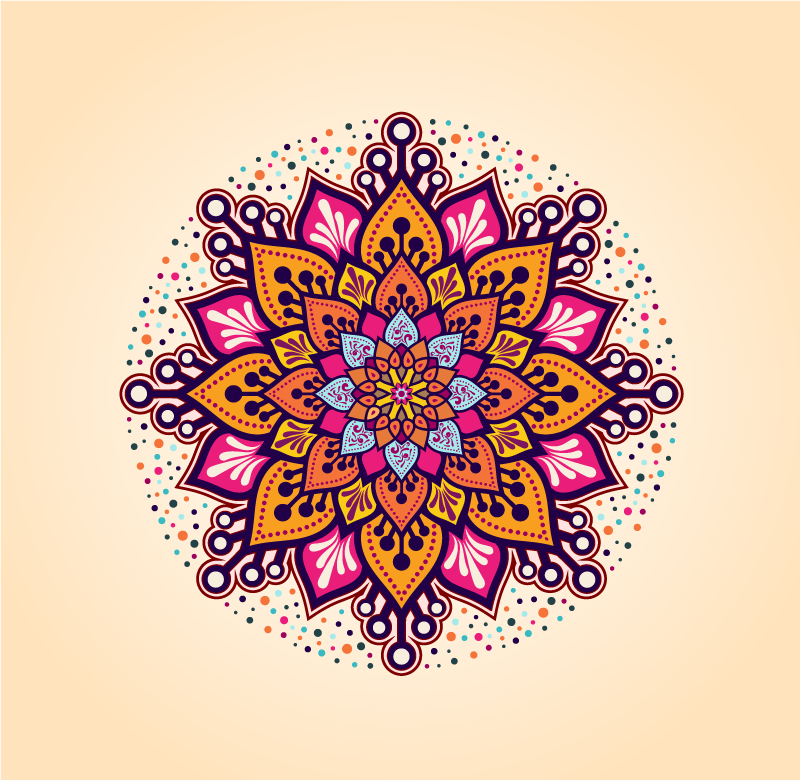
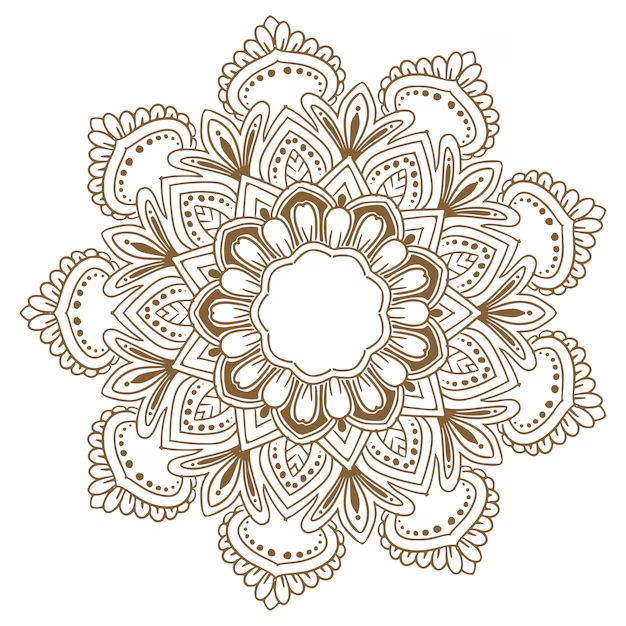
- Search for Mandala Designs – Go to Google and search for “Mandala Designs”. 6 different mandala designs you like.
- Save the Images
- Upload the Images to Your Blog
- Write About Each Design
- Why did you choose this design?
- What do you like about it?
- How do you think this will inspire your own designs?

Video Instructions:
Practical Task
Create 2 different mandala designs using the Mandala Generator. Watch the video to help you learn how to use the plataform.
- Visit Mandala Generator
- Adjust Segments
- Add Colour
- Save the Design
- Repeat for another Design – Create one more mandalas with different shapes, colours, or styles.
Upload to Blog:
- Upload all 2 designs to your blog.
Evaluation and Reflections
For each of your 3 designs, write a paragraph answering the following questions:
- What shapes did you use in this design? Did you get inspired by your images you researched?
- What colours did you choose for the background and lines for this design and why? Do you think they look good together?
- Were your line strokes thick or thin?
- What did you like most about this design?
- What would you improve or change if you had more time?
Comparison:
Now that you’ve reflected on each design, compare them by answering the following questions:
- Which of the two designs do you like the most and why?
- What was the biggest difference in approach between your designs?
- What did you learn from creating these mandalas?
- If you could combine elements from any of your designs, what would you mix?
Task 2 Pixel art
Learn and Create Pixel Art on Pixilart
Task Overview:
In this task, you will watch a video tutorial about pixel art and use what you learn to create your own examples on the platform Pixilart.
Steps to Complete the Task:
- Watch the Video:
- Click on the link and watch the video tutorial: How to Start with Pixel Art – MortMort.
- Pay attention to tips on creating shapes, choosing colours, adding shading, and keeping your designs clean and clear.
- Create Your Own Pixel Art:
- Go to Pixilart and log in or create a free account.
- Create 2 to 5 pixel art designs based on these themes:
- Nature (e.g., tree, flower, mountain, cloud)
- Objects (e.g., key, sword, potion, chair, lamp)
- Animals (e.g., cat, bird, fish, dragon)
- Buildings (e.g., house, castle, bridge)
- Food (e.g., cake, fruit, coffee mug)
- Use the techniques from the video, such as shading, highlights, and creating smooth shapes.
- Save Your Work:
- Save each design on Pixilart and download them as PNG files and upload to your blogs.
- Evaluation and Reflection:
Write a short evaluation about your designs. Use these prompts to help you:- What inspired this design?
- What tools and techniques from the video did you use?
- What part of the design are you most proud of?
- What challenges did you face, and how did you overcome them?
- If you were to improve this design, what would you change?
- How do you feel about working with pixel art after completing this task?
T
Task 3 Digital Collage Using Canva
Create a Digital Collage Using Canva’s Templates
Objective:
Create a digital collage that represents your personality, interests, or a theme of your choice using Canva’s easy-to-use tools. This task encourages creativity and helps you practice composition, colour selection, and digital design skills.
Instructions:
- Sign Up or Log In to Canva
- Go to Canva and either sign up for an account or log in if you already have one.
- Choose a Template
- On the Canva homepage, type “Collage” in the search bar to find a variety of pre-designed collage templates. Choose one that suits your theme or design idea. You can start with a blank canvas or select a template that looks interesting.
- Select a Theme for Your Collage
- Think about what you want your collage to express. Some possible themes:
- Personal Interests: Hobbies, favourite things, places, or activities.
- Nature & Environment: Flowers, animals, landscapes.
- Memories or Moments: A collection of photos that tell a story or show a journey.
- Emotions or Ideas: Colour and shapes that represent feelings or concepts.
- Think about what you want your collage to express. Some possible themes:
- Add Images
- To create your collage, search Canva’s free image library or upload your own photos.
- Use the “Uploads” tab on the left to upload your own images (such as photos of places, objects, or moments that inspire you).
- Drag and drop images onto the canvas and arrange them creatively. Resize and rotate them to fit the design.
- Adjust Layout and Elements
- Move the images around and adjust their size so they fit together seamlessly. You can overlap images or leave some space between them for a clean, balanced look.
- You can also add text if you want to include a message or title for your collage. Select the Text tool to choose fonts, sizes, and styles.
- Experiment with Colours
- To give your collage a unique style, experiment with the background colour. You can change the background to a solid colour, gradient, or pattern.
- Adjust the colours of your images using the filter and adjustment options to create a harmonious colour scheme.
- Add Decorative Elements
- Canva offers a wide range of stickers, shapes, and icons that you can add to enhance your collage. For example, you could add borders, hearts, or arrows to highlight certain parts of your collage.
- Explore the Elements tab to find fun and unique additions.
- Final Touches
- Make sure all images are aligned properly and that the overall composition feels balanced.
- Once you’re satisfied, make sure to add your name or a small signature to the corner of the collage.
- Download Your Collage
- Once your collage is complete, click the Download button in the top-right corner. Select PNG or JPG to save your collage to your computer.
Upload to Your Blog:
- Create a new post titled “My Digital Collage”.
- Upload your finished collage to the post.
- Write a short description (a couple of sentences) about:
- Why you chose the theme for your collage.
- What images you included and why.
- How the design reflects your personality, interests, or the theme you chose.
Tips:
- Keep it simple: Don’t overcrowd the collage with too many images or elements. The best collages often have a clear focal point or central idea.
- Focus on composition: Play around with the layout to ensure the images are visually appealing and balanced.
- Have fun with it! This is your creative space, so don’t be afraid to experiment with different layouts, colours, and images.
 Art & Design @ West Thames College