WEEK 8 – WC/19th Oct
This week you will use your portraits to Create a Galimberti-Inspired Photo Mosaic on Photoshop.

In Lesson Tasks
Photoshop Task – Galimberti-Inspired Photo Mosaic
Download the pack and open your favourite on Photoshop.
You will create a fragmented portrait inspired by Maurizio Galimberti. You will build each photo section yourself, turn it into a Smart Object, and then place your own photographs inside the different frames.
Step 1 – Select the first black area
Choose the Magic Wand Tool  .
.
Click inside one of the black photo areas.
Make sure only that black section is selected.
Step 2 – Copy the selection onto a new layer
Keep the selection active and press:
Command + J
This copies the selected black area onto a new layer.
Rename the layer clearly, for example:
Photo 01
Step 3 – Convert it into a Smart Object
Right-click the new layer and choose:
Convert to Smart Object
You should now see the Smart Object icon on the layer thumbnail.
Step 4 – Open the Smart Object
Double-click the Smart Object thumbnail.
A new Photoshop tab will open.
Inside, you should see the black shape you created.
Keep this black shape because it will control where your photograph appears.
Step 5 – Add your photograph
Drag one of your portrait photographs into the Smart Object document.
Make sure the photograph layer is above the black shape layer.
Use:
Command + T
to resize, move and rotate the photograph.
Choose an interesting section such as:
- Eyes
- Mouth
- Hair
- Nose
- Side profile
- Ear
- Hands
- Jewellery
- Clothing
- Close-up details
Step 6 – Create a Clipping Mask
Some of the frames may be slightly tilted, so the photograph needs to stay inside the shape.
Make sure the photograph layer is directly above the black shape layer.
Then:
Right-click the photograph layer → Create Clipping Mask
The photograph will now only appear inside the black shape.
You can still use Command + T to adjust the photograph.
Step 7 – Save the Smart Object
When you are happy with the photograph, press:
Command + S
Close the Smart Object tab and return to the main document.
Your photograph should now appear inside the frame.
Step 8 – Repeat the process
Repeat the same process for every black section:
Select → Command + J → Convert to Smart Object → Open Smart Object → Add Photograph → Clipping Mask → Save
Use a variety of photographs and angles.
Try to include:
- Front view
- Side profile
- ¾ view
- Looking up
- Looking down
- Close-ups
- Different expressions
- Details such as hair, hands, clothing or jewellery
Step 9 – Build one fragmented portrait
Your final piece should feel like one portrait made from many photographs, not a normal photo gallery.
Look at how Maurizio Galimberti uses:
- Different viewpoints
- Close-ups
- Repeated features
- Different scales
- Different parts of the face
- Images that visually connect across the grid
Step 10 – Final details
When all the photographs are in place, check the full composition.
Make sure you have used a good range of angles and close-ups and that the portrait still feels connected.
On the white bottom area of the last row of Polaroids, use the Brush Tool to add something personal.
You could write:
- Your name
- The date
- A short word or phrase
- A title for the artwork
- Small hand-drawn marks or symbols
Try to make it look like something that has been written directly onto a real Polaroid photograph.
WEEK 7 – WC/12th Oct
This week, you will research two artists who create fragmented portraits using photography. You will look closely at how they crop, repeat, resize and rearrange parts of the face, and how they use different camera angles to create unusual portraits. You will compare both artists and think about which techniques you could use later when taking your own photographs and creating your own fragmented portrait.
In Lesson Tasks
Artist Research – Maurizio Galimberti
Before creating your own Fragmented Portrait, you will research photographer Maurizio Galimberti.
Galimberti creates portraits by taking many photographs of the same person and putting them together to create one new image. This research will help you understand his style and give you ideas for your own photography.
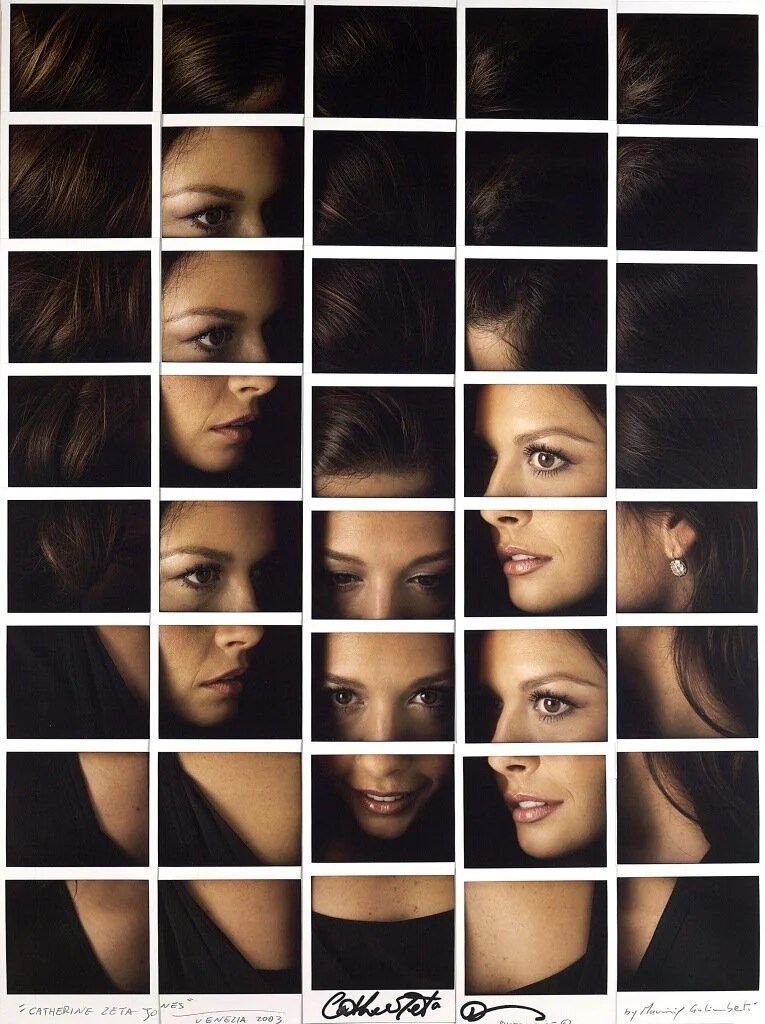
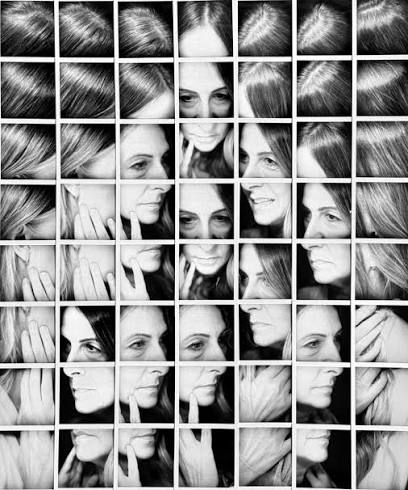
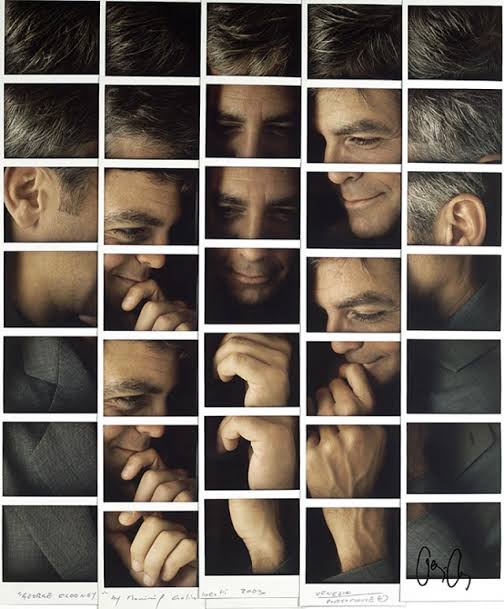
1. Find examples
Find at least 5 examples of Maurizio Galimberti’s portrait photography.
Upload the images to your blog as a gallery.
2. About the artist
Write a short introduction of around 40–50 words.
Include:
- Who is Maurizio Galimberti?
- What type of photography does he create?
- How does he create his fragmented portraits?
3. Choose one artwork
Choose one portrait that you find interesting. Add a larger image of it and answer these questions:
1. What can you see in the artwork?
Describe the person, colours, background and photographs.
2. How has the portrait been broken into different sections?
Are the photographs the same size? How are they arranged?
3. Is the person looking in the same direction in every photograph?
Describe some of the different angles you can see.
4. What part of the portrait do you notice first? Why?
5. How does the artwork make you feel?
For example: interested, confused, excited, uncomfortable, curious or calm.
6. What do you like or dislike about the artwork? Explain why.
4. Think about your own photographs
Imagine you were going to create your own portrait inspired by Galimberti.
Answer:
- Would you need one photograph or lots of photographs?
- Would you photograph the same person several times?
- What different angles would you photograph?
- Would you take any close-up photographs?
- Which parts of the face would you photograph?
Finish by explaining one idea from Galimberti’s work that you would like to try yourself.
Blog heading
Artist Research – Maurizio Galimberti
WEEK 5 – WC/ 28th Sep
Now that you have completed your Shantell Martin-inspired digital drawing, you need to evaluate your final outcome and reflect on the skills you developed. Explain what you created, what worked well, what you found difficult and what you would improve next time.
In Lesson Tasks
Evaluation and Reflection: Shantell Martin-Inspired Digital Drawing
Upload your finished JPEG and a screenshot showing your Photoshop layers. Then answer the questions below using full sentences.
- What did you create?I created a digital drawing that…
- How is your work inspired by Shantell Martin?I followed her style by using…
- Where can you see Order and Chaos in your artwork?I created order by… I created chaos by…
- Which Photoshop tools did you use?I used the Brush Tool to… I also used layers to…
- What is the strongest part of your artwork? Explain why.The strongest part is… because…
- What was difficult, and how did you deal with it?I found… difficult. I solved this by…
- What would you improve if you created it again?Next time, I would improve… by…
- What new skill did you learn?I learned how to… This will help me…
Use because to explain your answers. Avoid answers such as “It was good” or “I liked it” without giving a reason.
WEEK 4 – WC/ 21st Sep
This week, you will learn the basic Photoshop tools and create an A3 landscape drawing inspired by Shantell Martin. You will use brushes, colours, the Eraser Tool and layers to build your artwork. You will experiment with flowing lines, faces, words, symbols and patterns to represent Order and Chaos. Finally, you will save your Photoshop project and upload the finished image to your blog.

- Digital Drawing: Inspired by Shantell Martin
- Set up and Submit Blog link
In Lesson Tasks
Digital Drawing: Inspired by Shantell Martin
This week, you will learn some basic Photoshop tools and create an original drawing inspired by Shantell Martin and the theme Order and Chaos.

1. Create your page
- Select File → New.
- Choose the A3 preset.
- Select Landscape.
- Click Create.
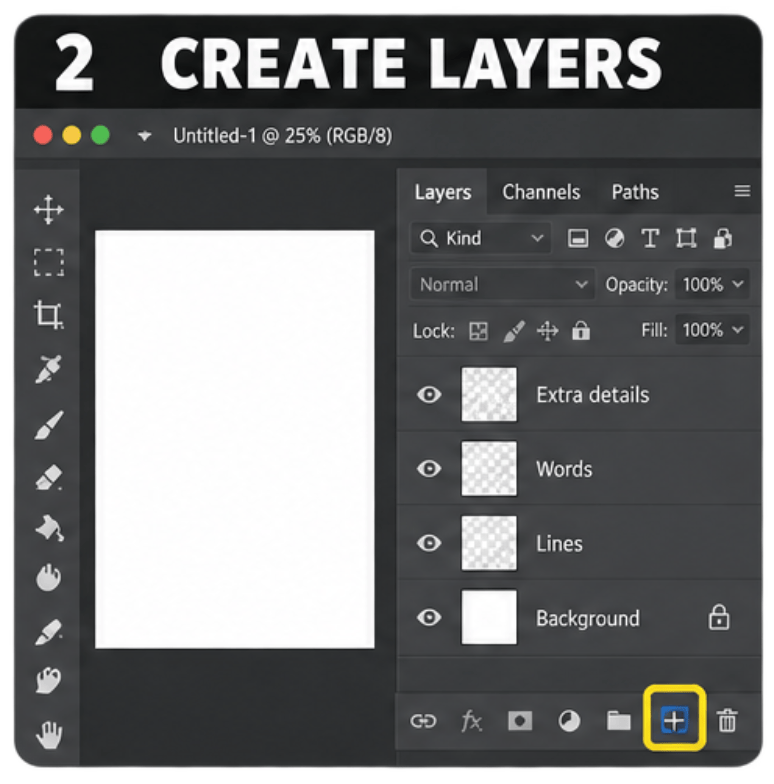
2. Create layers
Click the + at the bottom of the Layers panel.
Create separate layers for:
- Lines
- Words
- Extra details
Click the correct layer before you start drawing on it.
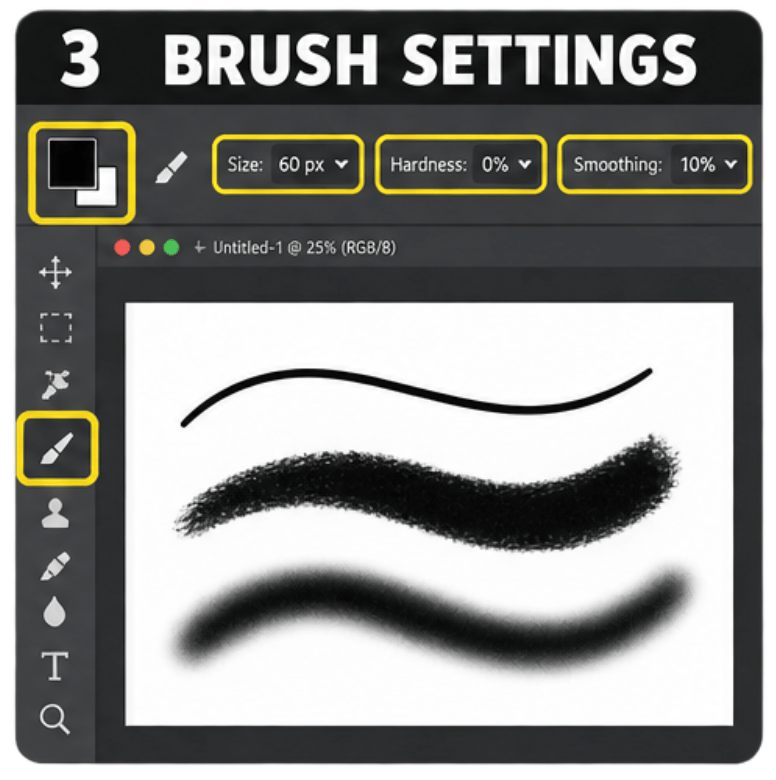
3. Use the Brush Tool
Select the Brush Tool or press B.
Use the options at the top to change:
- Size: Changes the thickness of the brush.
- Hardness: Use a high number for a clean, sharp line.
- Smoothing: Helps you draw smoother lines. Try 50–100%.
- Colour: Click the coloured square on the toolbar and choose a colour.
You can also press [ or ] to quickly change the brush size.
4. Use the Eraser Tool
Select the Eraser Tool or press E.
Change its size at the top and draw over anything you want to remove.

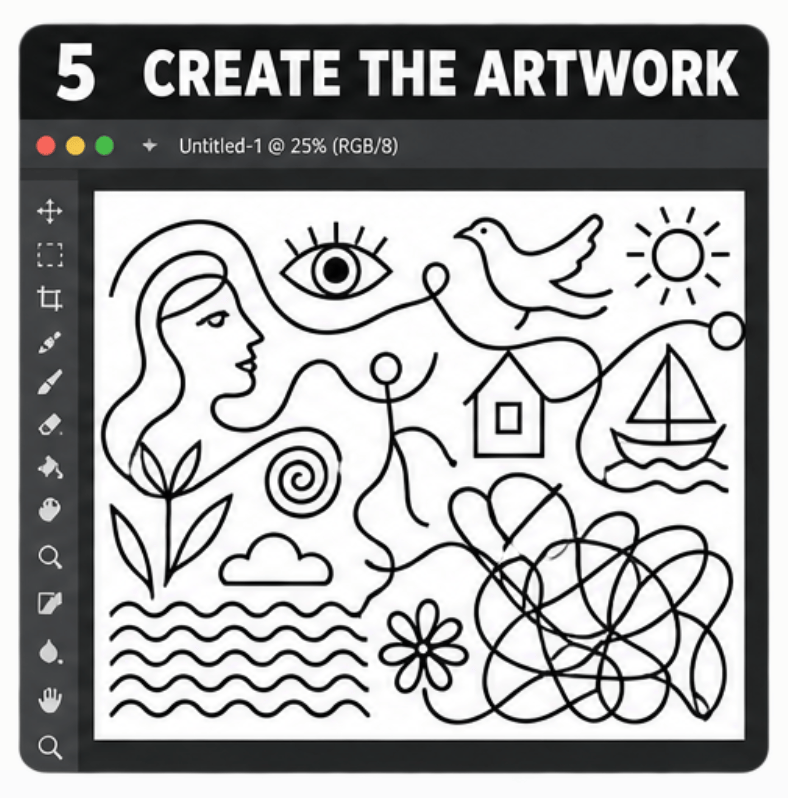
5. Create your artwork
Create an original design using features from Shantell Martin’s style: Flowing black lines; Faces and figures; Words and messages; Symbols and repeated shapes; Ordered patterns and chaotic lines.
You are following the artist’s style, but you are not copying her artwork.
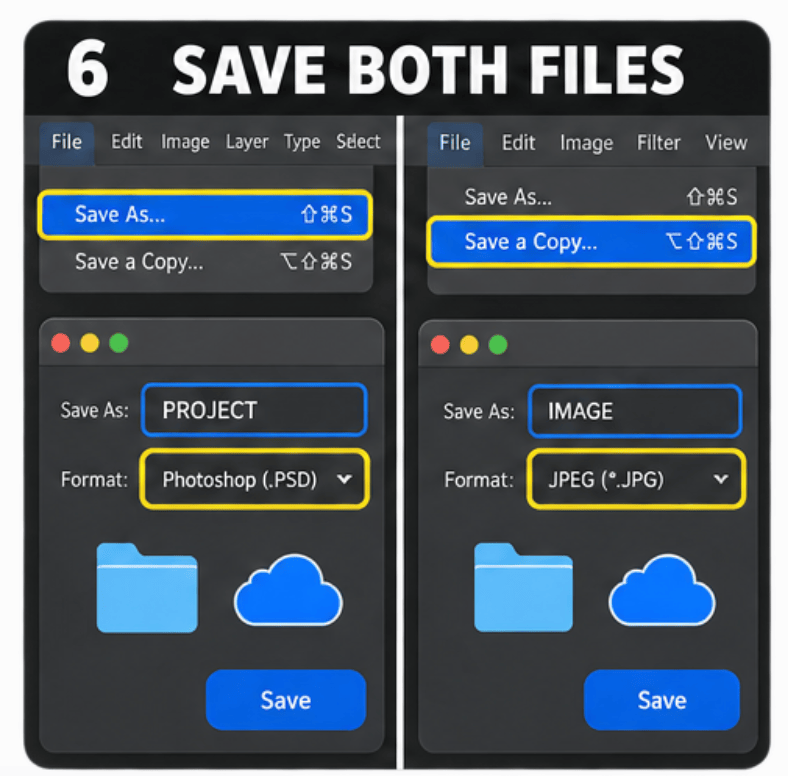
6. Save your work
Save the project:
- Select File → Save As.
- Save it as a Photoshop file (.PSD) in OneDrive.
Save the image for your blog:
Save it as a JPEG.
Select File → Save a Copy.
WEEK 2 – WC/ 7th Sep
This week, you will research artist Shantell Martin and learn how she uses lines, shapes, figures and words in her artwork. You will choose and analyse two examples of her work, explaining how they show Order and Chaos. You will then explain how her work could inspire your own creative ideas. Complete your research on your project blog and submit your blog link. You will also prepare for remote learning by downloading Microsoft Teams and OneDrive.
In Lesson Tasks
Research: Shantell Martin
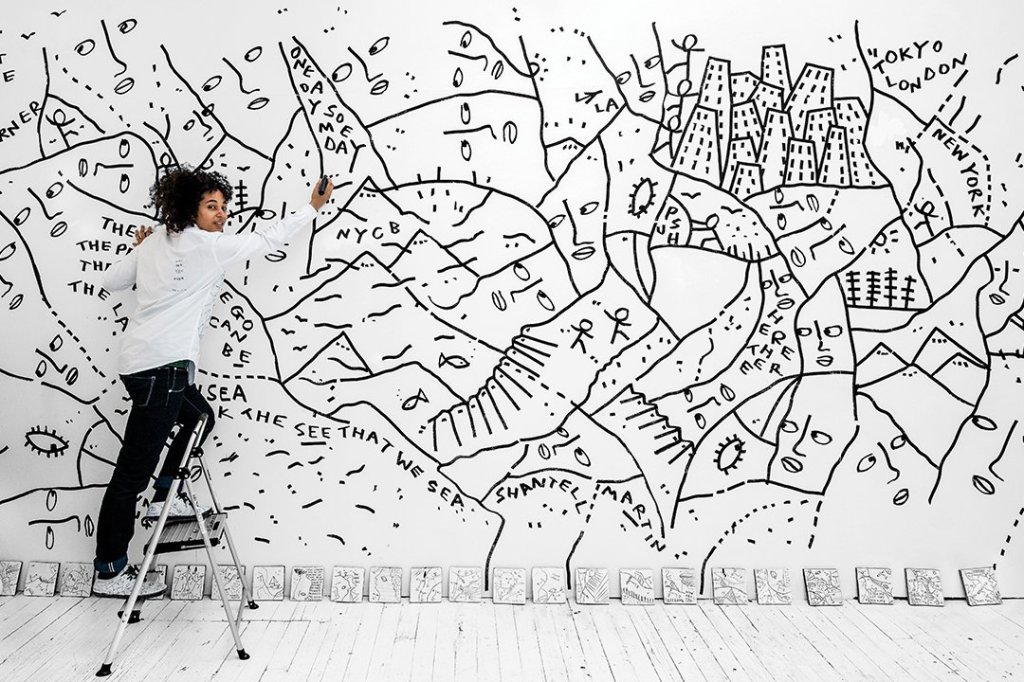
Shantell Martin is a British artist known for her drawings using black lines, shapes, figures and words. She often develops her ideas as she draws. Read about Shantell Martin.
Your task is to investigate her work and explain how it connects to Order and Chaos.
Create a post on your project blog called Shantell Martin – Artist Research.
Aim for 350–500 words altogether, with six artwork images. Use the three headings below.
How to build your writing
- Read one question.
- Use the website links to find information, or look closely at your chosen artwork.
- Note two or three useful facts or details.
- Use the sentence starter to write your answer in full sentences.
Write in your own words. When you give an opinion, use “because” to explain your reason.
1. About the artist
Who is Shantell Martin?
Where is she from? What is she known for?
“Shantell Martin is an artist from… She is known for…”
What types of artwork does she create?
Explore her artwork website. Find six examples of places or objects where her drawings appear. Look beyond drawings on paper.
“She creates artwork on… She has also worked with… This shows that…”
What makes her style recognisable?
Look at several artworks. Which colours, lines, shapes or characters appear more than once?
“Her style is recognisable because… Across several artworks, I noticed… ”
How does she create her artwork?
Find information about her tools and drawing process. What does she draw with? What does she draw on?
Read about her spontaneous drawing: developing ideas while drawing, without planning every detail beforehand.
“She uses… to create… She often develops her drawings by…”
What ideas or messages does she explore?
Look for words and questions in her work. What might they encourage people to think about? Her work often explores identity, which means who you are.
“One idea she explores is… She uses the words… These could encourage people to think about…”
2. Explore two artworks
Choose two different artworks. These are useful starting points:
Add a clear image two artwork to your blog. Under each image, add its title, year and website link.
Answer every question below for both artworks.
What can you see?
Look closely for colours, shapes, faces, figures, symbols and words. Describe at least three details.
“In this artwork, I can see… There are also… The detail that stands out most is…”
How are the lines and shapes arranged?
Are the lines straight, curved, thick or thin? What repeats? Are some areas crowded and others empty? Do the lines lead your eyes around the artwork?
“The lines are… The repeated… creates a pattern. My eyes follow…”
How was the artwork made?
Read its description. Find out about the materials, tools or technology used. Is it drawn on a surface, displayed on screens or presented another way?
“This artwork was created using… It is displayed… This allows the artist to…”
Where can you see order and chaos?
For order, look for repetition, consistent colours or organised patterns.
For chaos, look for unexpected changes, overlapping marks or lines moving in different directions.
“I can see order in… because… The… looks chaotic because…”
An artwork can show both. Explain what you actually notice in your chosen image.
What feeling does it create?
Does it feel calm, playful, busy, confusing or exciting? Which detail creates that feeling?
“The artwork feels… because the…”
What do you think about it?
Choose a particular detail you like or dislike. Explain what makes it interesting or effective.
“I think the… works well because… I am less interested in… because…”
Help to explain your opinion:
Instead of stopping at “It looks playful,” explain the detail: “It looks playful because the curved lines turn into unusual faces.” Only use this idea if it matches your artwork.
3. Connect it to your own project
Explain how Martin’s work could inspire your Order and Chaos artwork.
What would you borrow from her approach?
Think about flowing lines, repeated symbols, faces, words or drawing spontaneously.
“I am inspired by the way Martin… In my own artwork, I could…”
How would you make the idea personal?
Which words, shapes or symbols could represent you?
“I would include… because… I would make the idea my own by…”
How would your artwork show Order and Chaos?
Explain what you would organise, repeat or change.
“I would create order by… I would introduce chaos by…”
Before you finish: Check that your blog contains information about the artist, two images with written analysis, your own project ideas and your research links.

